Pipeline Editor
The pipeline editor is a visual canvas for building your own pipelines. You add nodes (steps), connect their outputs to other nodes' inputs, configure each node, then save and run the pipeline as often as you like.
Open Editor from the sidebar (on mobile, tap More, then Pipeline editor).
The editor needs a screen wider than a typical phone. On a narrow screen you'll see a list of your saved pipelines instead, each with a Run button, so you can still run pipelines you've already built.
Editor layout
| Area | What it does |
|---|---|
| Toolbar (top) | Pipeline name, Load saved…, New, Undo, Redo, Validate, Save, Run… and Delete |
| Nodes panel (left) | One button per node type. Click a button to add that node. Shows how many nodes you've used out of 12 |
| Canvas (centre) | Where your nodes and connections live |
| Settings panel (right) | Settings for the selected node, the estimated cost and any validation errors |
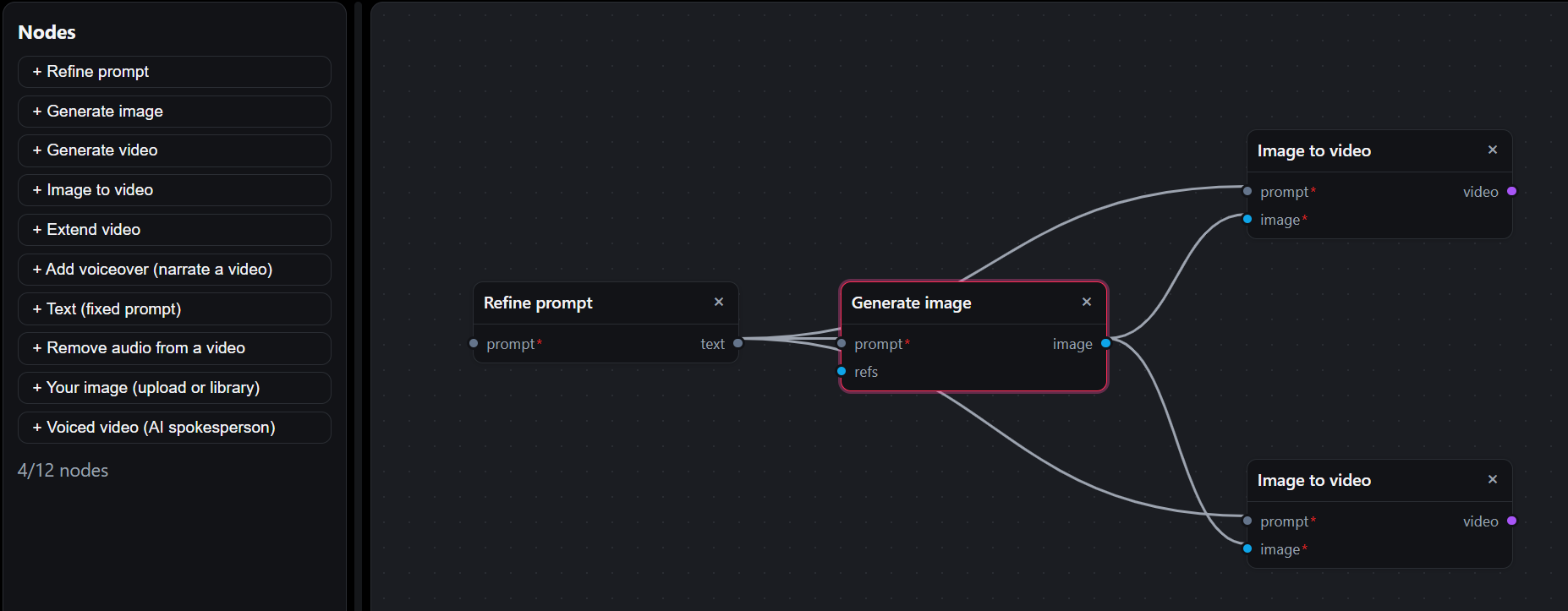
The "Multi-format ad" pipeline: one refined prompt and one image, animated two ways.
Drag the thin dividers between the panels to resize them. The editor remembers the widths on your device.
Build a pipeline
Add nodes
Click a node type in the Nodes panel, for example + Generate image. The node appears on the canvas, placed so it doesn't overlap existing nodes. A pipeline can hold up to 12 nodes.
Move around the canvas
- Move a node: drag its title bar. Nodes snap to a grid
- Pan: drag an empty part of the canvas
- Zoom: scroll the mouse wheel over the canvas
Connect nodes
Each node has inputs on its left edge and outputs on its right edge. Ports carry one of three kinds of data: text, image or video.
To connect two nodes, drag from an output port on one node and release on an input port on another. For example, drag from the image output of Generate image to the image input of Image to video.
- You can only connect ports of the same kind. Connecting an image output to a text input shows Cannot connect image to text
- Connections can't form a loop. If they would, you'll see That connection would create a loop
- An output can feed as many inputs as you like, so one image can go to several video nodes
- Most inputs accept one connection. Dropping a new connection onto an input that's already connected replaces the old one
- The refs input on Generate image accepts up to 5 connections, and on Voiced video up to 3
- Inputs marked with * are required
To remove a connection, click it.
The prompt input
Most generation nodes have a prompt input. If you connect a Refine prompt or Text (fixed prompt) node to it, the node uses that text. If you leave it unconnected, the node uses the prompt you enter when you run the pipeline.
Configure a node
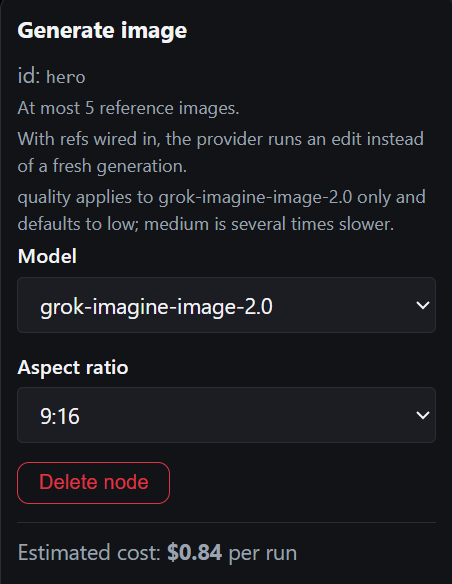
Click a node to select it. Its settings appear in the Settings panel on the right, along with a short description of the node's rules and limits. The panel also shows the node's id (for example generate_image_1), which validation errors use to tell you which node has a problem.
Changes apply as soon as you change a field.
Delete nodes and undo
- Delete a node: click the × on the node, click Delete node in the Settings panel, or select it and press Delete or Backspace. Its connections are removed too
- Undo and Redo: use the toolbar buttons, or press Ctrl+Z and Ctrl+Shift+Z (Cmd on Mac)
Node reference
| Node | What it does | Inputs | Output | Key settings |
|---|---|---|---|---|
| Refine prompt | Rewrites a prompt with AI into a single, detailed prompt for a vertical social ad | prompt (text) | text | Creative direction (optional) |
| Text (fixed prompt) | Publishes exactly the text you type, with no AI rewrite. Free | None | text | Text (up to 5,000 characters) |
| Your image (upload or library) | Supplies an existing image from your media library. Nothing is generated, so it's free | None | image | Choose image |
| Your video (library) | Supplies a finished video from your workspace. Nothing is generated, so it's free | None | video | Choose video |
| Generate image | Generates an image, or edits and combines reference images when refs are connected | prompt (text), refs (image, up to 5) | image | Model, Aspect ratio, Quality |
| Generate video | Generates a video from text | prompt (text) | video | Model, Duration, Resolution, Aspect ratio |
| Image to video | Animates an image into a video | prompt (text), image* (image) | video | Model, Duration, Resolution, Aspect ratio |
| Extend video | Adds more footage to the end of a video | prompt (text), video* (video) | video | Model, Extend by (seconds) |
| Voiced video (AI spokesperson) | Generates a video of a presenter speaking a line aloud in a preset AI voice | prompt (text), refs (image, up to 3) | video | Model, Duration, Resolution, Aspect ratio, Voice |
| Add voiceover (narrate a video) | Speaks your script over an existing video. The video itself is not regenerated | prompt (text), video* (video) | video | Script*, Voice, Original audio |
| Remove audio from a video | Makes a silent copy of a video. The picture is copied untouched | video* (video) | video | None |
| Character (saved person) | Supplies a saved character's images and voice. Nothing is generated, so it's free | None | images | Character |
| Add captions (burn in text) | Burns subtitles and timed text cards into a video, styled for 9:16 | video* (video), text (text) | video | Captions, Position, Caption timing, cues |
| Lip-sync (character speaks your line) | Re-animates the mouth in a video so the person speaks your script in the chosen voice | video* (video), script (text) | video | Script, Voice, Model |
* Required.
Refine prompt
Rewrites the incoming prompt into one vivid prompt with a concrete subject, setting, lighting, camera and mood. There is no media cost.
- Creative direction (optional): steers the rewrite, for example Rewrite as a clean studio product photo on a seamless background, no people
- This node only reads text. It can't see images, so describe the composition you want rather than asking it to look at a picture. Connect images to the generating node's refs input instead
- If the AI reply can't be used as a prompt, the original prompt is passed on unchanged, so this node never makes a prompt worse
- The rewritten prompt is shown on the step in the run's stage view
Text (fixed prompt)
Use a Text node to:
- Give different branches of a pipeline different prompts, for example one prompt for the still image and another describing the camera movement for the video
- Pin exact wording so a pipeline produces consistent results from run to run
The text can't be empty and can be up to 5,000 characters.
Your image (upload or library)
Click Choose image to open the Select Source Image picker and pick an image from your media library. The chosen image shows as a thumbnail on the node and in the Settings panel. Use Change image or Clear to update it.
Connect its image output to Generate image (as a reference) or to Image to video (to animate it).
Your video (library)
Click Choose video to pick a finished video from your workspace. Use Change video or Clear to update it. The node is free and creates no job.
Connect its video output to Add captions, Add voiceover, Remove audio from a video, Lip-sync or Extend video. Use it to caption, narrate or re-voice a clip you already have without generating it again.
- The video must be finished and belong to your workspace. This is checked when you validate, save and run
- If the video was made with a character, voice steps downstream use that character's voice unless you set one
- With Lip-sync downstream, the clip's length and resolution are checked before anything is charged
- With even caption timing, the Add captions step still needs its own text. With speech timing it doesn't, and the video's original script is used to correct spellings when there is one
Generate image
| Setting | Options |
|---|---|
| Model | Grok Image 2.0 (default), Grok Image (fastest), GPT Image 2.5 Sunburst (precise) or GPT Image 2.5 Flare (fast) |
| Aspect ratio | Auto, 9:16, 16:9, 1:1, 21:9, 5:2. The GPT Image 2.5 models offer Auto, 9:16, 16:9 and 1:1 only (9:16 is delivered as 2:3, 16:9 as 3:2) |
| Quality | Grok Image 2.0: Default (low), low, medium or auto. GPT Image 2.5: Default (medium), low, medium, high or auto. Not shown for Grok Image |
- With nothing connected to refs, a new image is generated from the prompt
- With images connected to refs (from Your image, Character or other Generate image nodes), the model edits and combines those images instead. Up to 5 reference images
- Use GPT Image 2.5 Sunburst when the image must follow a detailed brief exactly (colours, counts, layout). See Image Generation
- If a Grok image step fails on the provider's side, it's retried once on GPT Image 2.5 Sunburst automatically, as for single images. A step that hits a temporary platform error is retried without being billed twice
Image models show their names in the Model list. Video models appear by their technical names:
| Model | Shown in the editor as |
|---|---|
| Grok Video 1.5 | grok-imagine-video-1.5 |
| Grok Video | grok-imagine-video |
See Image Generation for how the image models compare.
Generate video and Image to video
| Setting | Options |
|---|---|
| Model | Grok Video 1.5 (default) or Grok Video |
| Duration (seconds) | 1–15 |
| Resolution | 480p, 720p, 1080p (1080p needs Grok Video 1.5) |
| Aspect ratio | Auto, 9:16, 16:9, 1:1 |
- Image to video needs an image connected to its image input
- Auto aspect ratio means 9:16 for Generate video, and matches the source image for Image to video
- 1080p costs roughly three times as much per second as 480p or 720p (the option is labelled ~3x cost), so keep it for final renders
- Grok videos include audio automatically. To get a silent video, add a Remove audio from a video node after it
Always set Duration and Resolution yourself on each video node, rather than relying on the values shown before you've changed them.
Extend video
Adds a continuation to the end of the connected video.
- Model: Grok Video only. Extending isn't available on Grok Video 1.5
- Extend by (seconds): 1–10 (default 10). This is the length of the added portion only
- Needs a video connected to its video input
Voiced video (AI spokesperson)
Generates a vertical video of a presenter who speaks a line aloud.
| Setting | Options |
|---|---|
| Model | Grok Video 1.5 only |
| Duration (seconds) | 1–15 |
| Resolution | 480p or 720p (capped at 720p) |
| Aspect ratio | Auto, 9:16, 16:9, 1:1 |
| Voice | eve (default), leo, rex, ara, gork, aurora |
- Connect up to 3 images to refs to guide the people, products or setting in the video
- The spoken line comes from the prompt feeding this node. Write the exact words into that prompt, for example They say: "Built for the long game." If the prompt doesn't include a spoken line, the presenter is simply asked to speak to camera
- The Spokesperson ad template does this for you: its Refine prompt step writes the scene and ends it with a short spoken line
The Script field on this node doesn't currently change what the presenter says. Put the line in the prompt instead, as described above.
Add voiceover (narrate a video)
Speaks your script over an existing video. The voice can be an xAI preset or an OpenAI voice with a written direction (see Voices). If you don't set one, it uses the voice of the character the video was made from, else eve.
| Setting | Options |
|---|---|
| Script | The words to speak, word for word. Required, up to 5,000 characters |
| Voice | Use the character's voice (default), an xAI preset (eve, leo, rex, ara, gork, aurora) or an OpenAI voice with a Voice direction. Click Preview to hear it |
| Original audio | replace (default) swaps the video's audio for the narration. mix keeps the original audio, lowered under the narration |
- The video keeps its own length. A short script is followed by silence, and a script that runs longer than the video is cut off
- Needs a video connected to its video input
Remove audio from a video
Every Grok video comes with an audio track, and there's no setting to turn it off at generation time. Connect a video to this node to get a silent copy. The picture quality is untouched.
Character (saved person)
Pick a saved character. Connect its images output to the refs input of Generate image (up to 5 images) or Voiced video (up to 3). The character's description is added to those steps' prompts, and voice steps downstream use the character's voice unless you set one. The node is free and creates no job.
Add captions (burn in text)
Burns subtitles into a video in large, bold, outlined text with safe margins for TikTok and Reels.
| Setting | Options |
|---|---|
| Captions | The text to show. If empty, it uses a connected text input, else the script from an upstream Voiced video, Add voiceover or Lip-sync step |
| Position | bottom (default, clear of TikTok's buttons), center or top |
| Caption timing | even (default) spreads the text in short chunks evenly across the clip. speech transcribes the clip and shows each group of one to four words while it's spoken (about US$0.006 per minute of video) |
| cues | Optional timed text of its own, up to 50: each with text (up to 3 lines), start and end in seconds, position, style (caption or card) and optionally an exact height and size. Set these from Claude or the pipeline's saved graph. See Place text exactly |
- With speech timing the caption text is optional. If there is one (typed, wired in, or the upstream script), it only corrects the spelling of the recognised words
- A card is bigger text on a semi-opaque box, for grade cards and titles, for example
Grade: A+from 2.4 to 4.5 seconds in the centre - Cues past the end of the clip are cut off
- Counts as a creative job, not a generation. With speech timing, the transcription is billed once even if the step is retried
To add text to a video you've already made, use Overlays & Captions instead of a pipeline.
Lip-sync (character speaks your line)
Makes the person in a video speak your script, in any voice, including an OpenAI voice with a written direction. It generates the speech, then re-animates the mouth to match using Kling LipSync.
| Setting | Options |
|---|---|
| Script | The words to speak. If empty, it uses a connected script input, else the run prompt |
| Voice | Same choices as Add voiceover. Defaults to the character's voice |
| Model | Kling LipSync |
- The source video must be 2 to 10 seconds at 720p or 1080p. 480p isn't supported
- The speech must fit the clip: about 20 words for an 8-second clip. Longer scripts are refused before anything is charged
- Takes a few minutes. Counts as one video generation
- Chain Add captions after it to show the same script on screen
Estimated cost
When you click Validate (or load a saved pipeline), the Settings panel shows Estimated cost: $X.XX per run. It's a rough estimate in US dollars, based on the number of image and video nodes and each video node's duration and resolution. It's deliberately on the high side so you see the most a run is likely to cost before you start it.
The estimate disappears when you change the pipeline. Click Validate again to update it.
Validate and save
- Validate checks the whole pipeline. You'll see Graph is valid or a list of problems in the Settings panel
- Save validates and saves the pipeline under the name in the toolbar (it starts as Untitled pipeline; click the name to change it). Save* means you have unsaved changes
- Load saved… opens one of your saved pipelines
- New starts an empty pipeline. If you have unsaved changes you'll be asked to confirm
- Delete removes the saved pipeline you have open
Delete removes the saved pipeline immediately, without asking for confirmation. Past runs of the pipeline stay on the Pipelines page.
Saved pipelines are shared with everyone in your workspace.
Run a pipeline
Click Run…. The editor:
- Validates the pipeline. If there are problems you'll see Fix the validation errors first
- Saves it, if it has unsaved changes or hasn't been saved yet. If the save fails, the run doesn't start
- Asks for a prompt in the Run pipeline dialog, but only if a node would use it (see The prompt input)
- Starts the run and takes you to the Pipelines page, where you can follow its progress
Nodes run in order of their connections: a node starts once every node feeding it has finished. If a node fails, the run stops and later nodes don't run. See Retry a failed run.
Validation errors
Errors name the node by its id, shown at the top of the Settings panel when you select the node.
| Error | How to fix it |
|---|---|
choose an image for this node | Select the Your image node and click Choose image |
type the text this node should publish | Enter text in the Text (fixed prompt) node, or delete the node |
text must be 5000 characters or fewer | Shorten the text |
write the line to be spoken in Script | Enter a Script on the Add voiceover node |
script must be 5000 characters or fewer | Shorten the script |
requires input "image" to be connected | Connect an image to the Image to video node |
requires input "video" to be connected | Connect a video to the Extend video, Add voiceover or Remove audio node |
1080p requires grok-imagine-video-1.5 | Change the model to Grok Video 1.5, or choose 720p or lower |
duration must be between 1 and 15 seconds | Enter a Duration from 1 to 15 |
extend_duration must be an integer between 1 and 10 | Enter a whole number from 1 to 10 in Extend by (seconds) |
| Add at least one node first | Add a node before saving |
| A pipeline can hold at most 12 nodes | Remove a node before adding another |
accepts at most 5 connections (or 3) | Remove a connection from the refs input first |
has no text: set captions or cues, use timing "speech"... | Give the Add captions node some text, set Caption timing to speech, or connect it after a step with a script |
timing must be one of even, speech | Choose even or speech |
Saved pipelines with retired models
xAI has retired the Grok image model that older pipelines may have saved. Nodes that used it now show Grok Image 2.0 in the Model list and run on Grok Image 2.0 automatically. You don't need to change anything, and these pipelines keep validating and running as before.
Related
- Pipelines: templates, runs, retries and outputs
- Build your first pipeline: a step-by-step walkthrough