Pipelines
A pipeline runs several creative steps one after another from a single prompt. For example: refine your prompt with AI, generate a product image, animate it into a video, then narrate it with a voiceover. Each step hands its result to the next, so you don't have to wait for one job to finish before starting the next one by hand.
Use pipelines when you produce the same kind of creative over and over. Once a pipeline is set up, every run follows the same steps with the same settings, and only the prompt changes.
Open Pipelines from the sidebar (on mobile, tap More, then Pipelines).
Key terms
| Term | Meaning |
|---|---|
| Pipeline | A set of connected steps (called nodes or stages) |
| Template | A ready-made pipeline you can run straight away from the Pipelines page |
| Saved pipeline | A pipeline you built yourself in the Pipeline editor |
| Run | One execution of a pipeline, with its own prompt, status and outputs |
Built-in templates
| Template | Steps | What it makes |
|---|---|---|
| Product ad (refine → image → video) | Refine prompt, Generate image, Image to video | Refines your prompt, generates a 9:16 product image with Grok Image 2.0, then animates it into a 10-second 720p vertical video with Grok Video 1.5 |
| Spokesperson ad (refine → voiced video) | Refine prompt, Voiced video | Turns your idea into a spokesperson script, then generates an 8-second 720p vertical video where the presenter speaks the line aloud in a preset AI voice |
| Long video (generate → extend) | Generate video, Extend video | Generates a 10-second 720p vertical video, then extends it by another 10 seconds for a longer cut |
| Character talking clip (character → voiced video) | Refine prompt, Character, Voiced video | A saved character speaks to camera in their xAI preset voice |
| Character scene (character → image → video) | Character, Generate image, Image to video | Puts a saved character in a scene, then animates it |
| Re-caption a video (your video → captions) | Your video, Add captions | Burns captions timed to the speech into a video you already have. Nothing is regenerated. Pick the video instead of entering a prompt |
| Character talking clip (designed voice) | Refine prompt, Character, Generate image, Image to video, Lip-sync, Add captions | A saved character speaks your line in their designed voice (for example an OpenAI voice), with captions. Enter the exact line as the prompt, about 20 words |
When you pick a template, the Pipelines page shows its description and the list of steps it will run.
Templates can't be edited. To change a step's settings, or to add steps such as a voiceover, build your own pipeline in the Pipeline editor.
Run a template
- Go to Pipelines
- Under New pipeline, choose a Template
- Enter a Prompt describing the ad you want, for example a sleek reusable water bottle on a sunlit gym bench
- Click Run pipeline
For Re-caption a video, click Choose video and pick a finished video instead of entering a prompt.
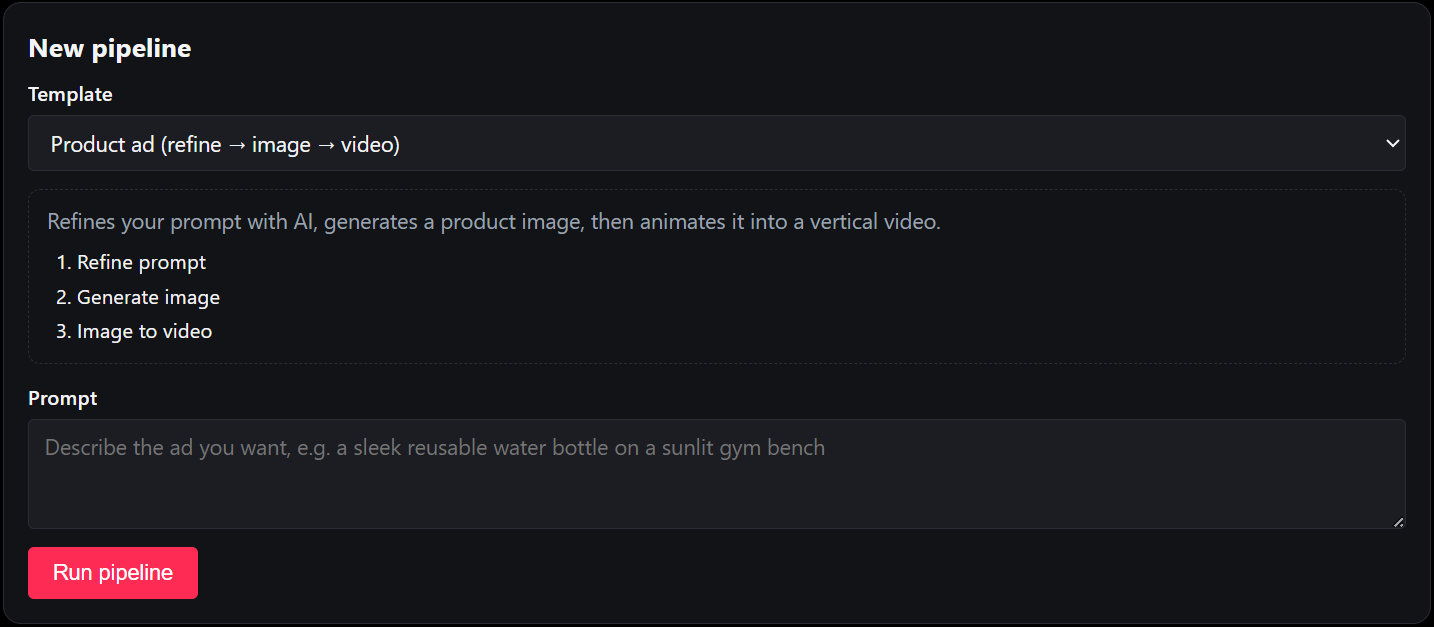
The new run appears in the list below, opened so you can watch each step. Your prompt is cleared after a successful start. If the run can't start, your prompt is kept so you can try again.
Run a saved pipeline
Saved pipelines are run from the Pipeline editor:
- Open the pipeline editor and choose your pipeline from Load saved…
- Click Run…
- If the pipeline needs a prompt, enter it in the Run pipeline dialog and click Run pipeline
You're then taken to the Pipelines page, where the new run appears at the top.
When you're asked for a prompt
A run asks for a prompt only when at least one step would actually use it. Any step that takes a prompt but has nothing connected to its prompt input falls back to the run's prompt. If every prompt input is fed by a Text (fixed prompt) or Refine prompt node, the pipeline starts straight away without asking.
Run history and status
The Pipelines page lists your 20 most recent runs, newest first. Each run card shows:
- The pipeline name (runs of a saved pipeline show the name you gave it)
- The prompt used for the run
- When the run was started
- A status badge
| Status | Meaning |
|---|---|
| queued | The run is waiting to start |
| running | A step is in progress (shown with a spinner) |
| ready | Every step finished successfully |
| failed | A step failed and the run stopped. See the error on the card |
The page refreshes automatically every few seconds while any run is queued or running. You don't need to reload.
Viewing steps
Click Show stages on a run to see its steps as a left-to-right flow. The newest run opens automatically when you visit the page. Each step shows:
- Its position and name, and its own status badge
- Waiting while it is queued, and Working... while it runs
- An inline preview of the image or video it produced, once ready
- The rewritten prompt, for Refine prompt steps
- An error message, if the step failed
- A View job button for steps that produced media
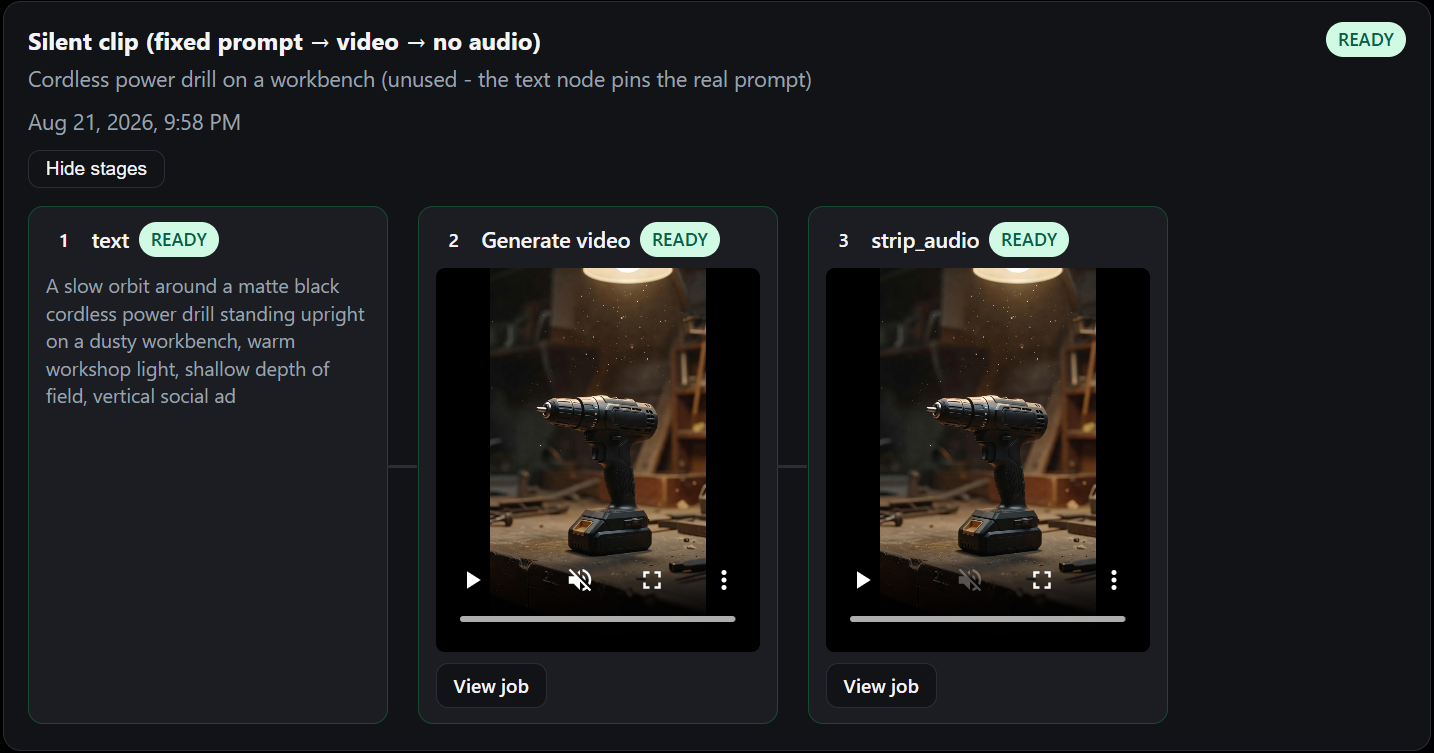
Click Hide stages to collapse the run again.
Where outputs go
Every step that produces media (images, videos, voiceovers and silent copies) creates a normal job. You'll find these jobs on the Jobs page alongside everything else you've generated, and View job on a step takes you straight to its job.
From the job detail page you can do everything you'd do with any other job, such as download it, upload it to your TikTok Ad Library or post it to a connected account. Generated images and videos are also available in the media library, so you can reuse them as reference images or source media later.
Steps that only work with text (Refine prompt and Text (fixed prompt)) and Your image steps don't create jobs.
The final result of a pipeline is the output of its last step. Intermediate results, for example the still image in the Product ad template, are kept as separate jobs, so you can use them too.
Retry a failed run
If a run fails, click Retry on its card. The button shows Retrying... and a Pipeline retry started message appears.
A retry picks up where the run stopped:
- Steps that already finished are not run again, and their outputs are reused
- The failed step and every step after it run again
- The retry uses the same prompt and settings as the original run
Only failed runs can be retried. If a step keeps failing, check its error message, adjust the prompt or the pipeline, and start a new run.
Errors you might see
| Message | What to do |
|---|---|
| Please enter a prompt first | Enter a prompt before clicking Run pipeline |
| Connect TikTok account first before generating creatives. | Connect your TikTok account on the Connect page, then run again. See Connect TikTok |
| Daily video generation quota would be exceeded by this pipeline. | Your workspace has reached its daily video limit. Each video step in a pipeline counts as one video. Try again tomorrow, or use a pipeline with fewer video steps |
| Too many pipeline requests. Please wait a minute. | You started several runs in quick succession. Wait a minute and try again |
| Invalid graph | A saved pipeline no longer passes validation. Open it in the Pipeline editor, click Validate and fix the listed problems |
| A step fails with a content moderation or provider message | The AI provider rejected the prompt or the result. Rephrase the prompt and run again |
Limits
- A pipeline can have up to 12 nodes
- Video steps (Generate video, Image to video, Extend video, Voiced video and Lip-sync) count toward your workspace's daily video generation quota. The quota is checked before a run or retry starts, so a run is never started if it would go over the limit part way through
- Images and videos generated by a pipeline are normal jobs, so they appear in your Jobs list like any other generation
Related
- Pipeline editor: build your own pipelines and see every node type
- Build your first pipeline: step-by-step guide
- Image Generation and Video Generation: the models used by pipeline steps